YAML in, unambiguous types out.
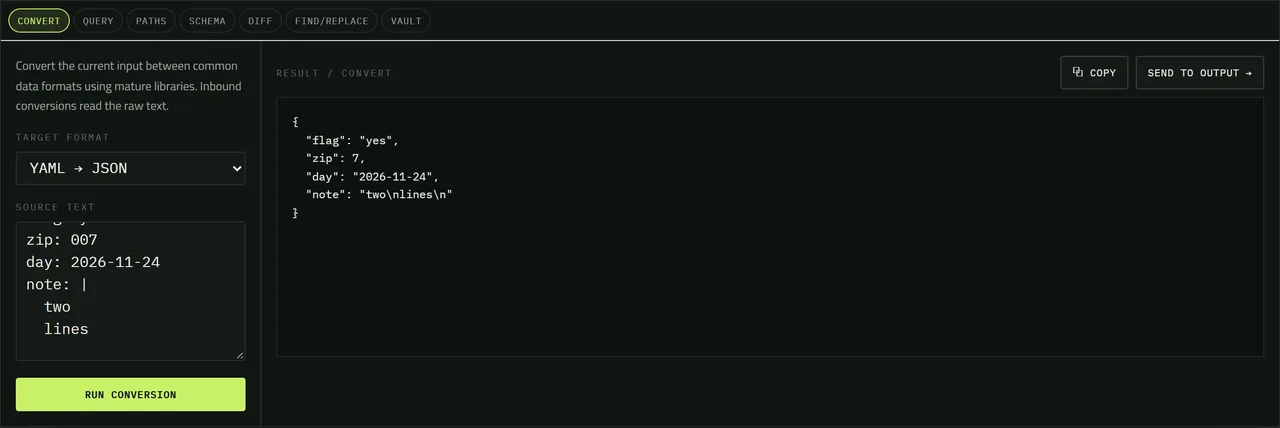
Parsing uses js-yaml against the YAML 1.2 core schema, which is the short answer to most "why did my value change" questions. yes, no, on and off remain strings here, while 1.1-era parsers read them as booleans.
| YAML | JSON |
|---|---|
flag: yes | "flag": "yes" |
zip: 007 | "zip": 7 — the leading zero is gone |
day: 2026-11-24 | "day": "2026-11-24" |
a note: | block of two lines | "note": "two\nlines\n" |
| an anchor and an alias | expanded into plain objects, no reference left |
a <<: *base merge key | kept as a key literally named << — the two maps are not merged |
two documents separated by --- | a JSON array holding both documents, not one merged object |
References, merges and the failures you do not see
Anchors and aliases are resolved into concrete structures before the JSON is written, which is what a consumer that has never heard of YAML needs. Merge keys are not. js-yaml loads the core schema here, and the core schema has no merge rule, so <<: *base arrives as a mapping key named << holding the referenced map — the inherited values sit one level deeper instead of joining the mapping. Diff the pair before a config file goes anywhere, and read the anchor and merge key guide for what each construct turns into.
A duplicated mapping key is rejected by the library, but the conversion does not stop there: the offline parser takes over and keeps the last value, so a: 1 above a: 2 arrives as { "a": 2 } with the rejection left in the console. Tab-indented blocks behave the same way — rejected by the library, accepted by the fallback. Both are a signal to fix the source, not a feature of this page.
NOTE The offline fallback understands the indentation subset — mappings, block and flow sequences, quoted scalars, comments and document markers. Block scalars, tags and aliases belong to the library path.
What you get on this page
- ▸Powered by js-yaml
- ▸Anchors and quoted strings handled
- ▸Live conversion while typing
- ▸Copy or send the JSON to the output pane
Because bracekit is a static application, this page loads quickly, caches well and never sends your data to a parsing server. Your formatting preferences, recent documents and snippets stay in local storage.